



Features Built For Creators
Everything in Vegas Pro is purpose-built and fully integrated. No clunky add-ons, just smooth, native editing to keep you in the flow. That’s the Vegas Pro DNA.
Effortless editing
Straightforward, intuitive tools that get you up and running fast, and working efficiently.
Everyday editing essentials
Basic tools you’ll be using all the time.
Vegas Core Engine
Power, speed, and accurate color processing. The Vegas Core Engine drives everything you do and delivers preview playback you can trust.
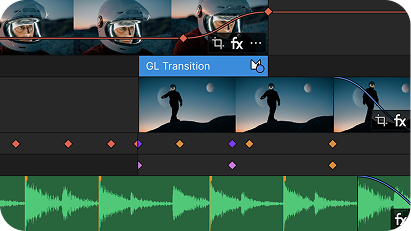
Timeline clip event editing
If you can drag and drop, you can edit. Quickly trim, split, cut, copy, paste, move, and arrange your clips in the timeline to sequence your video.
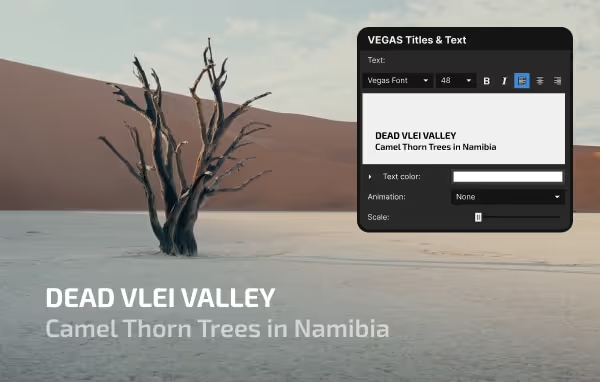
Title editing and presets
Text touches literally every project you work on. Robust titling options make it easy to create compelling titles and scrolling credits.
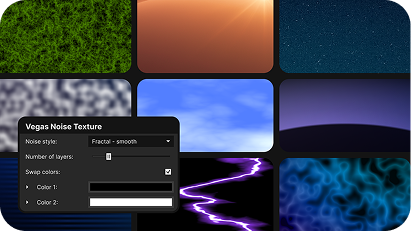
Media generators
Create graphical elements, color bars, patterns, textures, color gradients, and more. Perfect for compositing and motion graphics.
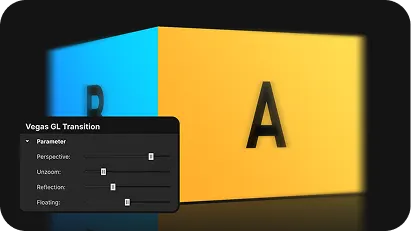
Transitions
Overlap two timeline clip events and automatically create the most common transition of all: the cross dissolve. Quickly replace that with more sophisticated transitions.
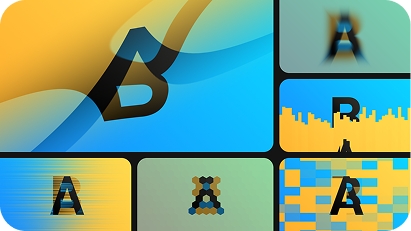
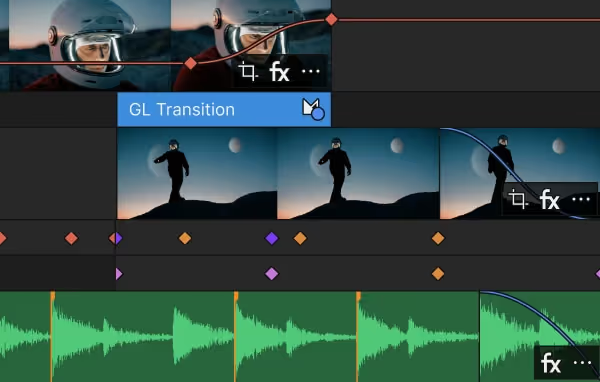
More new GL transitions
GL Transitions provide both stock options that you can use immediately and an open architecture to create unique custom transitions.
Fully customizable interface
A clear, flexible working environment.
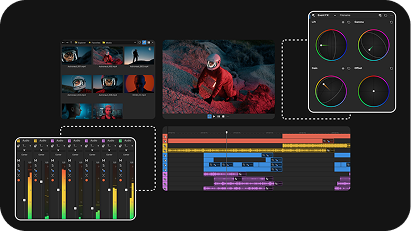
Flexible window docking
Dock your most important windows to any edge of the workspace so your tools always sit exactly where they work best for you.
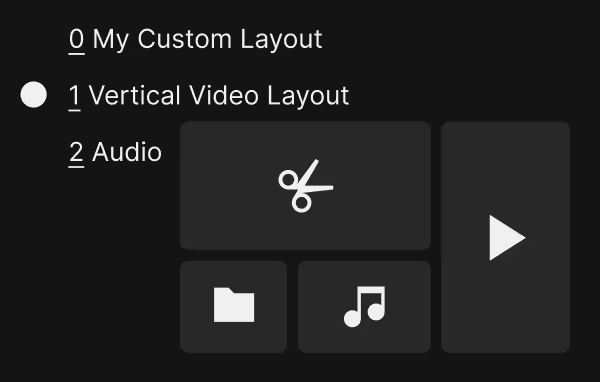
Custom layouts
Different tasks need different setups. Save your custom layouts and switch between them anytime. Fast and easy.
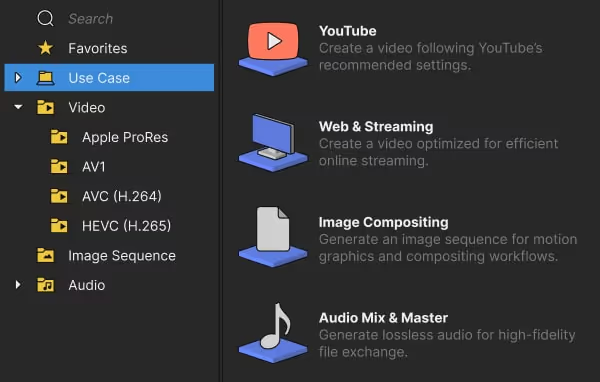
Render dialog
All the flexibility and customization pros need in a layout that makes it easy to choose the right settings for any platform.
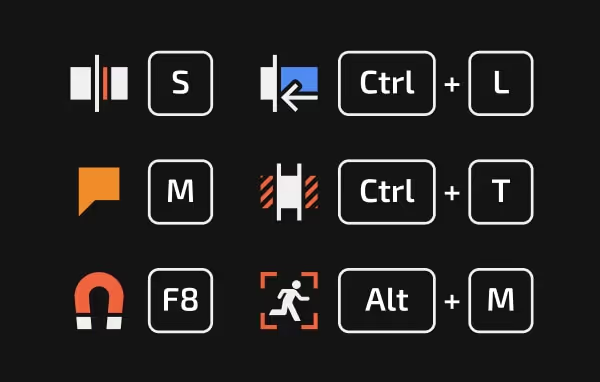
Keyboard shortcuts
Extensive shortcut commands help you work fast, and fully customizable keyboard mapping enables you to use the shortcuts you already know.
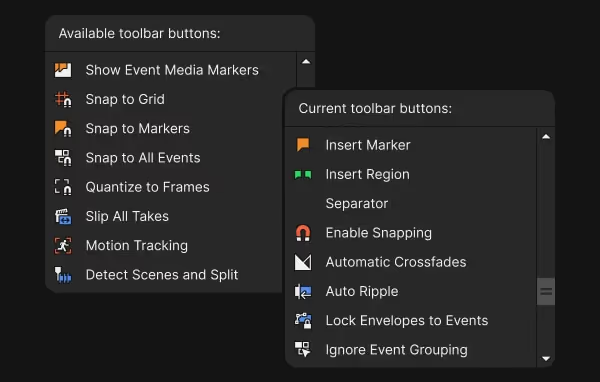
Toolbars and button sets
Fully customizable toolbars and button sets enable you to access your most commonly used buttons and tools instantly.
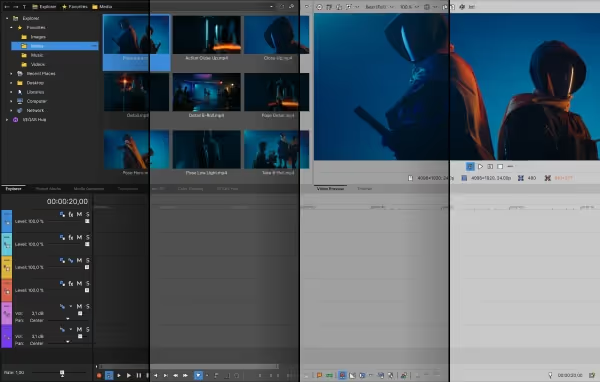
Interface Color
Set the interface to work best with your eyesight and viewing environment with three darkness levels to choose from.
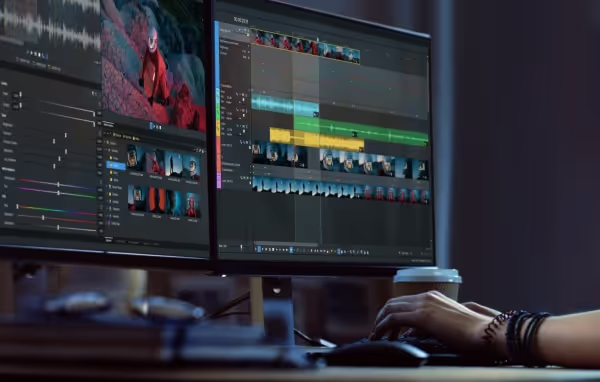
Multiple monitor support
Give yourself more workspace. Spread your timeline, tools, and windows across all your computer monitors in whatever configuration works best for you.
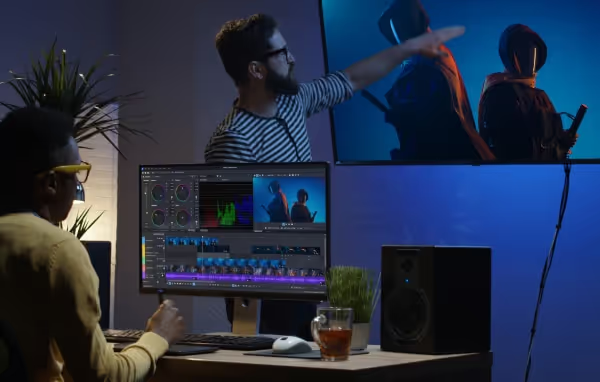
External monitor preview
Send your preview out to a professional reference monitor to ensure color accuracy and share the preview with clients and colleagues.
HiDPI
Experience every detail in razor-sharp clarity. Optimized for high-resolution displays, so your footage always looks as crisp as it was meant to.
Define your own workflow
Configure your environment to match how you work best.
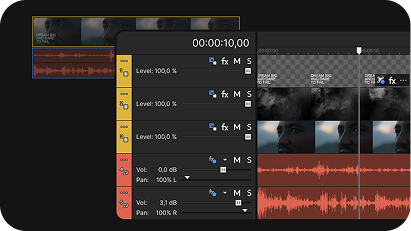
Project nesting
To simplify complex edits, nest subprojects directly into your main timeline. Update a subproject and see the changes instantly in the master.
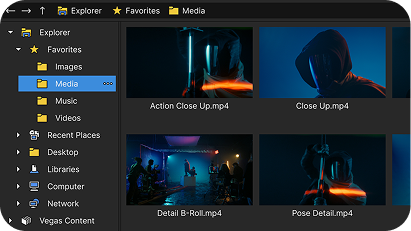
Vegas Explorer
Find and preview the media files you need in one convenient window.
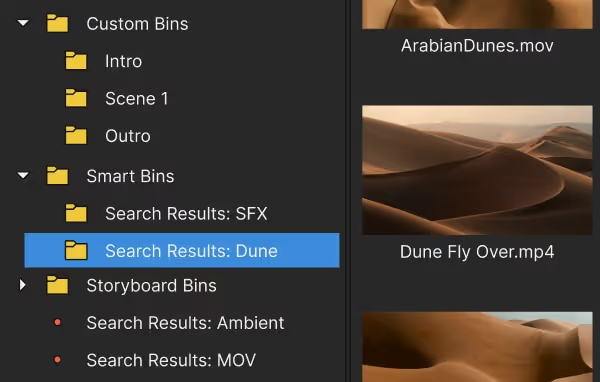
Project Media window
Organize your project media so you can easily access it. Create a bin structure with custom, smart, and storyboard bins. Search bins for the files you need.
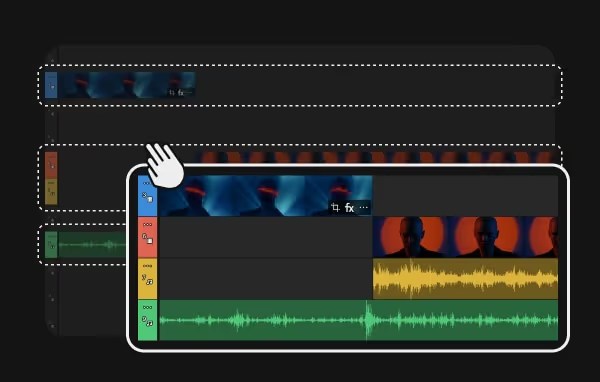
Adjustable track order
Drag tracks to any position in the track list. Place audio tracks adjacent to video tracks or stack them separately. Easily reorder them and change height.
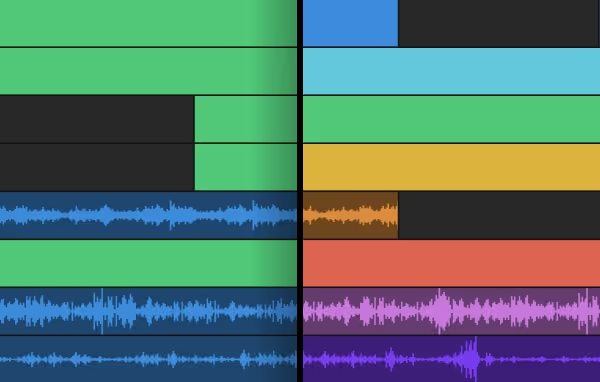
Changeable track colors
Use colors to organize your tracks and spot them at a glance. Update any track’s color whenever it suits your workflow.
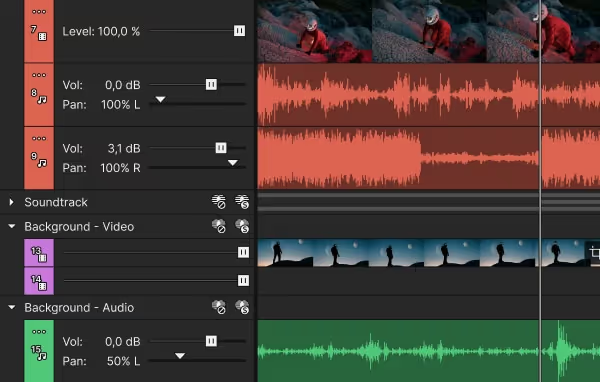
Group tracks
Group related tracks to keep your timeline organized. Collapse or expand a group as needed, and use mute or solo to focus only on what matters.
All-in-one power
Leverage unmatched editing power with native, integrated tools for advanced editing techniques.
Advanced editing tools
Advanced editing tools
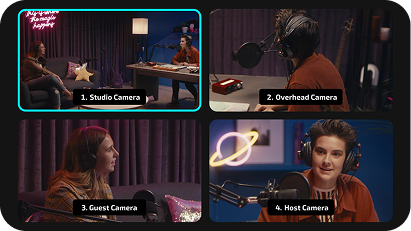
Multicam editing
Synchronize and preview footage from up to 32 cameras simultaneously, switch shots in real time and adjust cuts as needed.
Video FX packages
Save the effects chains (complete with parameter settings) you use most often and easily apply them anywhere you need them.
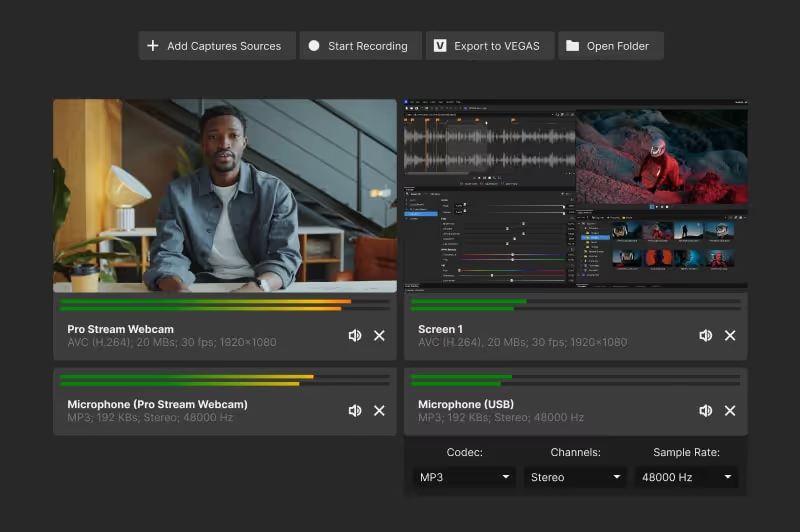
Vegas Capture
Capture multiple input sources including computer screens, video cameras. and audio feeds/microphones with this simple, integrated tool.
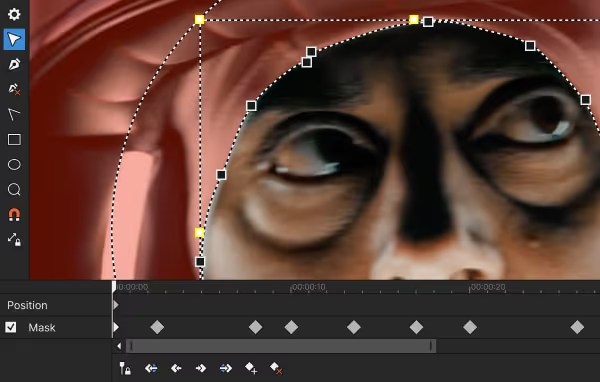
Bézier masking
Create precise mask shapes complete with fully adjustable Bézier curves to isolate objects in your scene and place them into a different background.
Chroma Key
Put your actor into scenes you could never shoot in reality. Remove the color background and replace it with different footage.
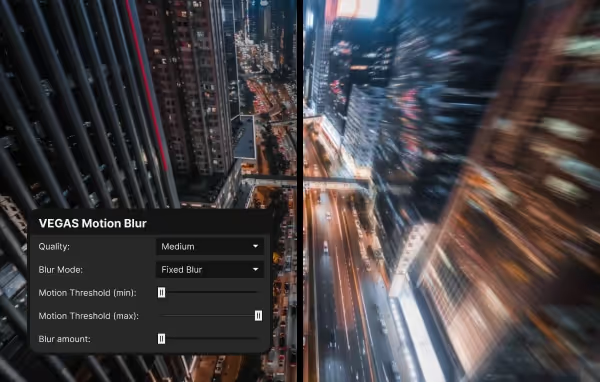
Motion Blur
To create a smoother, more natural effect when objects move across the screen, dial in the exact amount of motion blur you need.
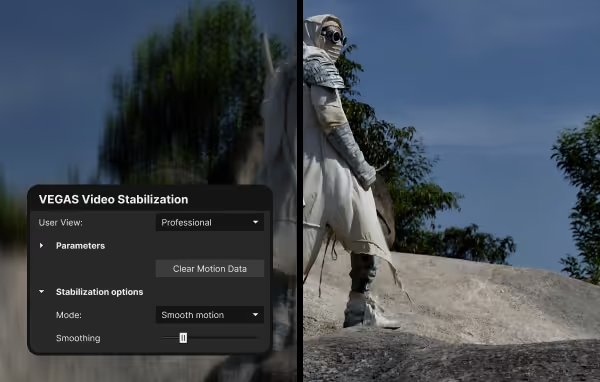
Video stabilization
Tame your shaky footage so it plays with rock-solid stability.
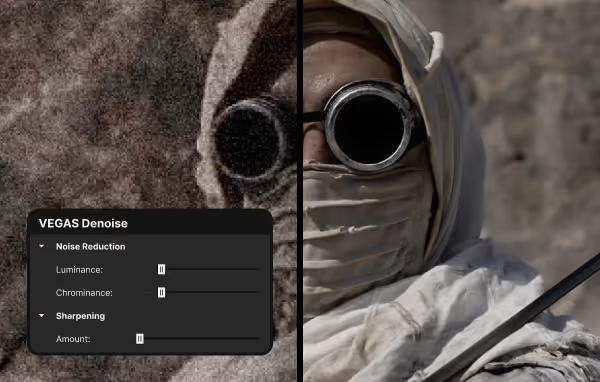
Denoise
Easily remove video noise with control over sharpening, luminance, and chrominance.
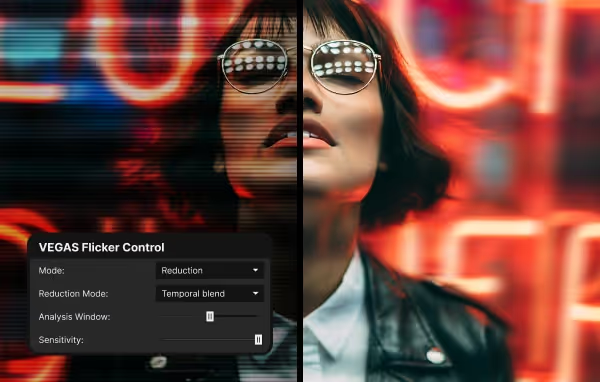
Flicker Control
Remove the distraction of unwanted flicker from lights or other sources. Or add it to your shot for interesting special effects.
Precise color grading
Fine-tune your colors with fully integrated grading controls.
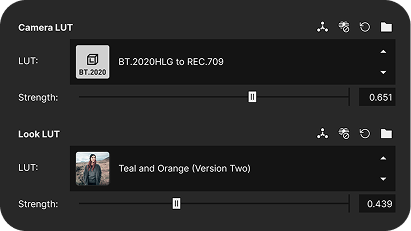
Input and Output LUTs
Properly interpret the footage from your camera with the right input LUT and experiment with a huge selection of look LUTs to create unique styles.
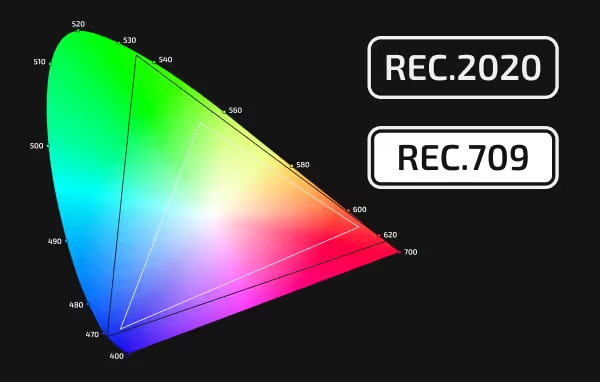
Log color space support
Get the most out of your camera’s color sensors. Interpret and adjust the vibrant colors in different log color spaces.
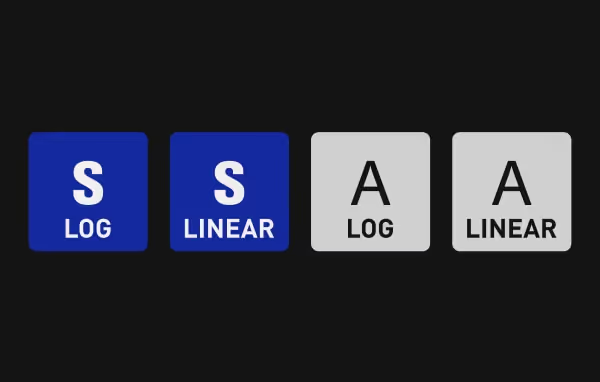
Samsung and Apple Log LUTs
Log isn’t just for the big expensive cameras anymore. Take full advantage of log footage from your mobile device for incredible and affordable color quality.
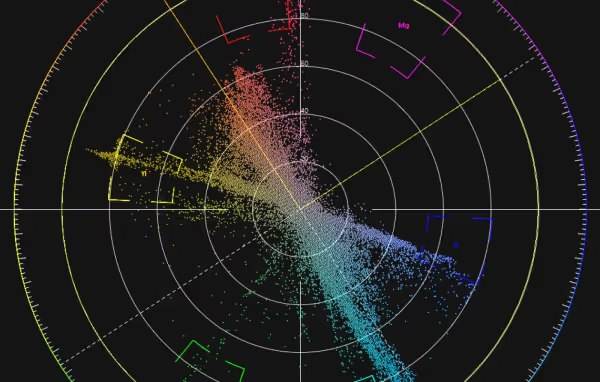
Accurate video scopes
Gain full understanding of your color values with Vectorscope, Waveform, Histogram, and RGB Parade views that update in real time.
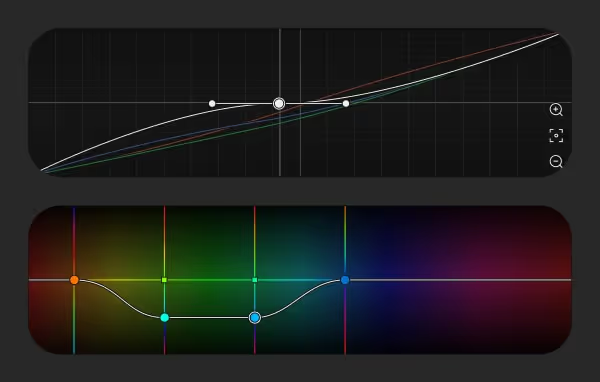
RGB and HSL color curves
Take fine control over each of the red, green, and blue channels of your footage, or adjust them globally. You can also work with Hue, Saturation, and Luminance.
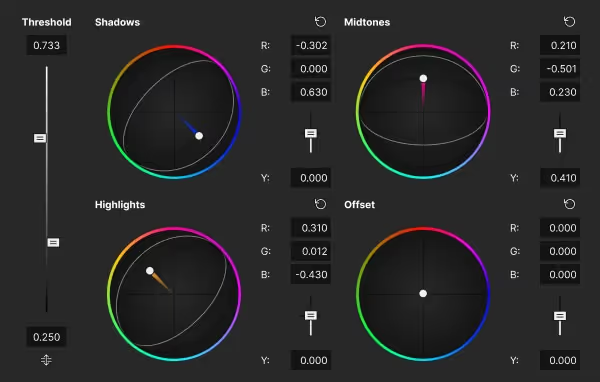
Range limited color wheels
Define the exact boundaries for shadows, midtones, and highlights, then limit color correction to those specific ranges.
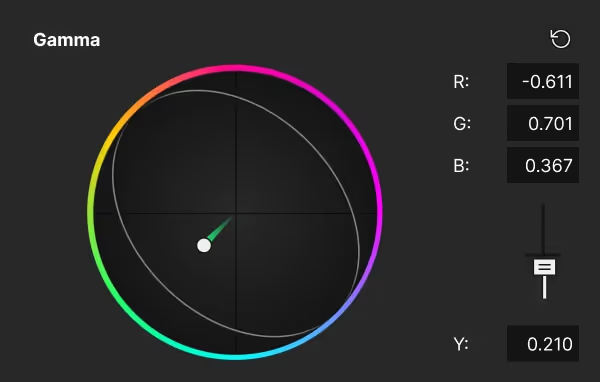
Lift, Gamma, and Gain wheels
Darken or brighten footage globally or with separate color wheels for three ranges of luminance. Add tint to these ranges for special effect.
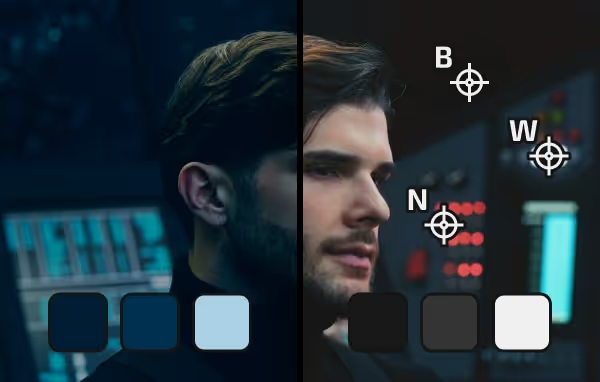
White and black point correction
To make sure you’re starting from the most accurate color representation possible, sample the white and black of your image and correct them automatically.
HDR10 & HLG in ACES 1.3
Grade without ever leaving the high dynamic range color space. Preview your colors in HDR, and adjust the HDR footage with all the color grading tools.
Comprehensive audio mixing
Shape every beat, voice, and sound to fit your story.
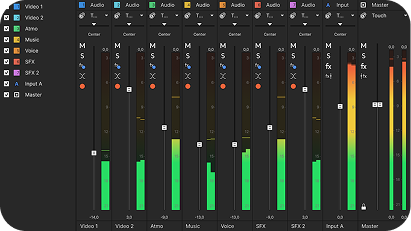
Mixing Console
Control every aspect of your mix including volume, panning, audio FX, bussing, routing, and more in this dedicated audio workspace.
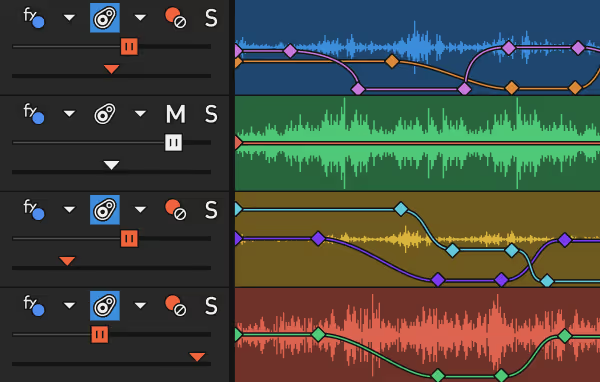
Audio FX automation
Add excitement to your audio mix with FX automation. Move a sound in the stereo field to follow an object, intensify an echo effect at just the right moment, and much more.
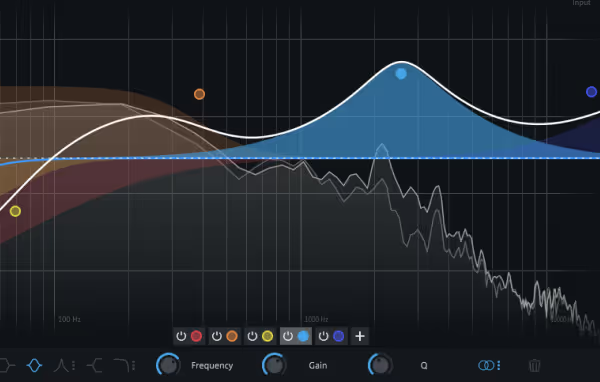
Modern Equalizer
Shape your sound with detailed control over the affected frequency, gain adjustment, and bandwidth — all in a sleek, intuitive interface.
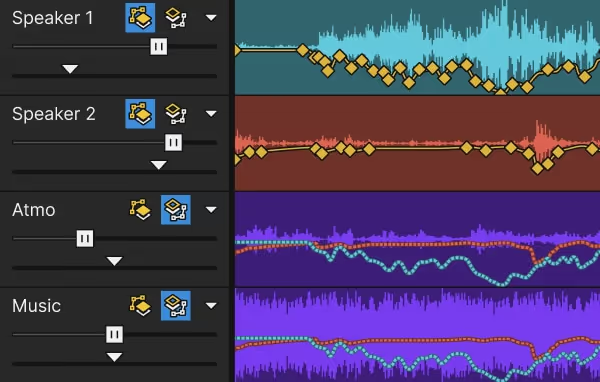
Auto Ducking
Music enhances your production, unless it competes with the message. Automatically adjust the music volume to highlight the narration.
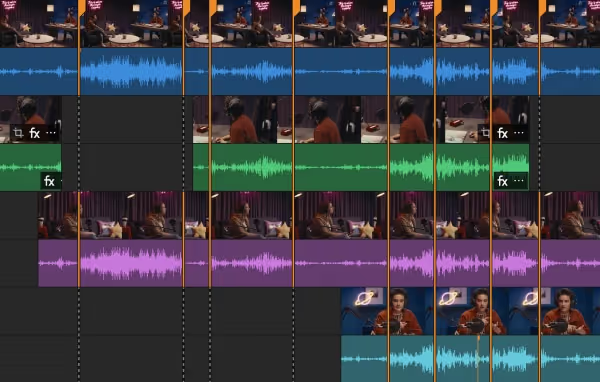
Audio Sync
Synchronize video clips and second-source audio from a multicamera shoot based on audio analysis.
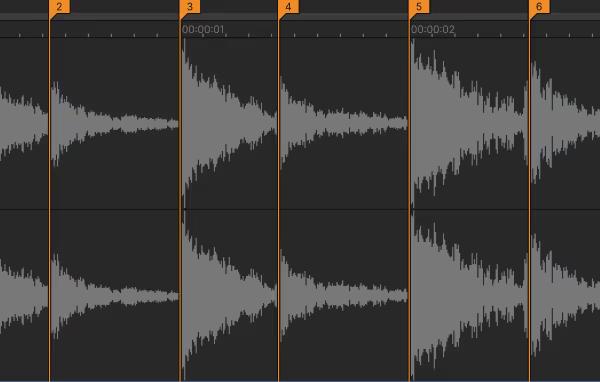
Beat and Tempo Detection
Automatically find and mark important hit points in the music so you can easily edit to them. Find the tempo of music and set your timeline ruler to match.
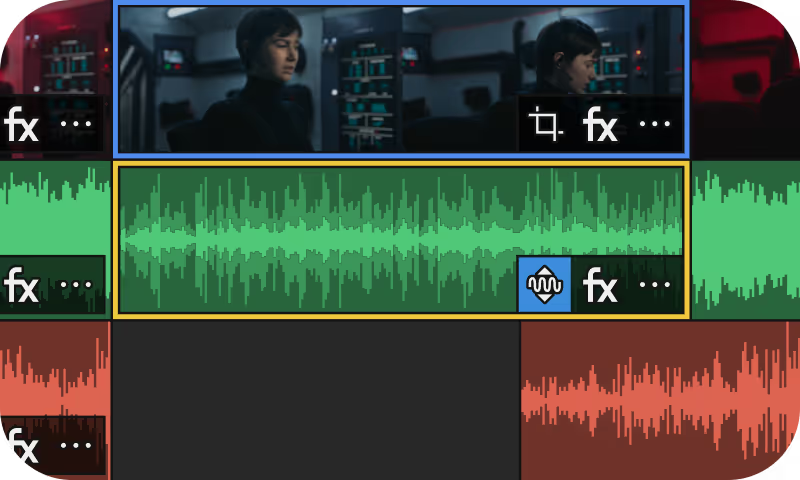
Auto Normalization
Always make use of the available dynamic range with normalization that automatically adjusts to the material as you edit.
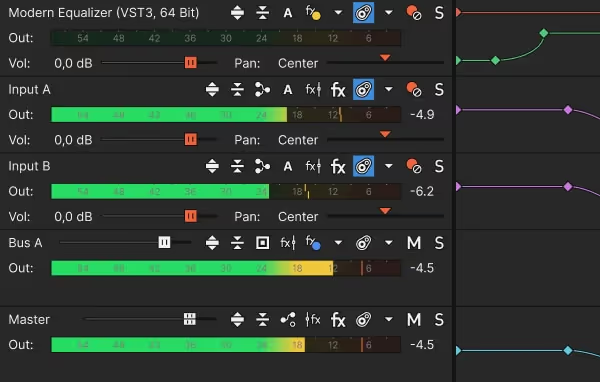
Audio and FX busses
Grab complete organizational control over your mix with Buses. Create sub mixes, route groups of audio tracks to the same effect, and more.
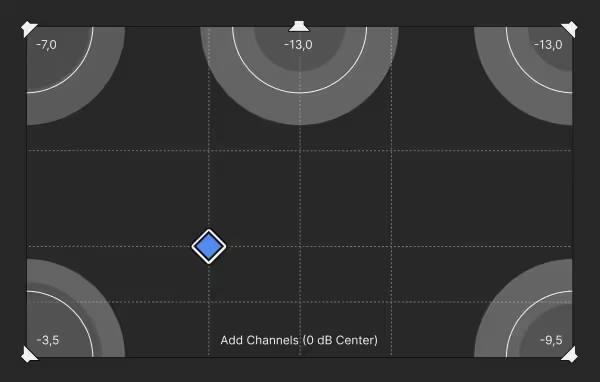
Precise volume and pan control
Make sure every sound sits perfectly in the mix with precise volume and panning controls on each track as well as audio bus tracks, including the master bus.
Multitrack audio recording
Record multiple tracks from different sources simultaneously.
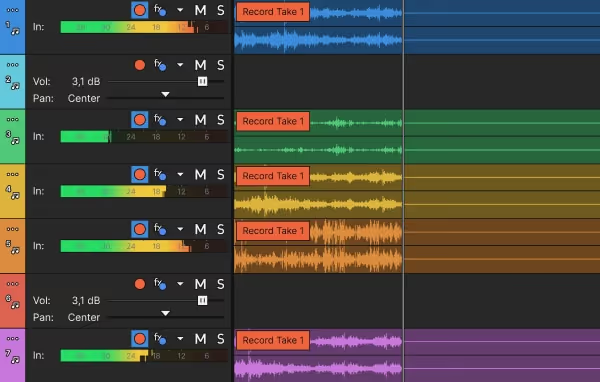
Multitrack audio recording
Set each audio track up to receive signal from the same or different audio sources and simultaneously record as many tracks as you need.
Low-latency ASIO driver support
Super-low audio latency means you can accurately listen to existing tracks of audio while your record in perfect synchronization to one or more new tracks.
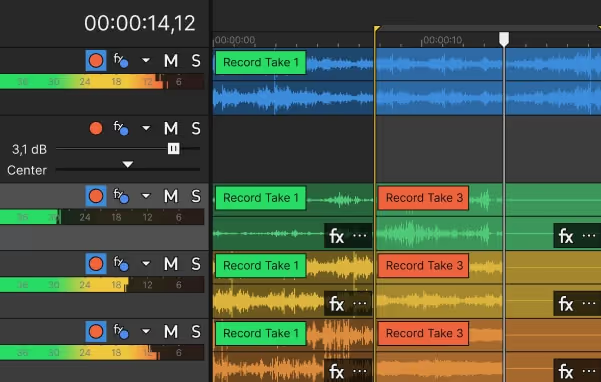
Punch-in recording and takes
No need to record the whole thing over just because of one mistake. Set the track up to loop through the problem area and record a new take on each pass.
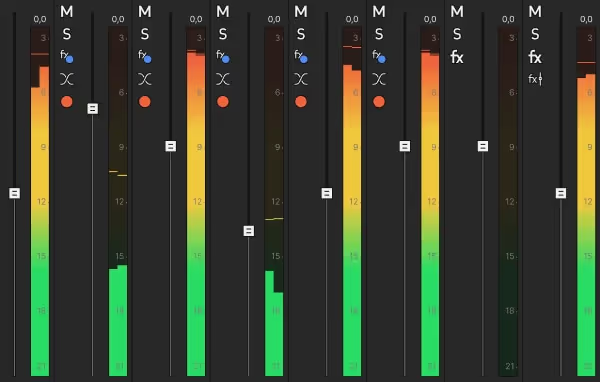
Precise input signal metering
Never record a track too “hot” or too quietly. Individual track input meters give you a highly accurate reading for the peak level of the incoming signal.
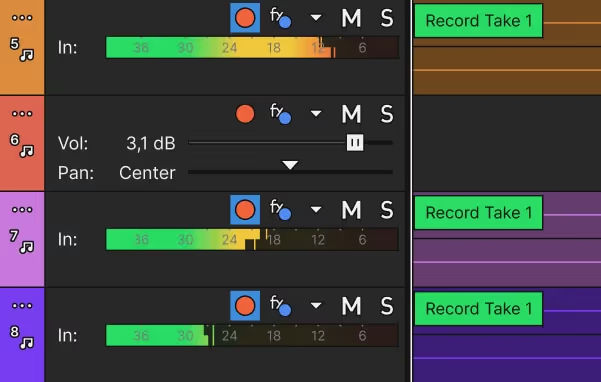
Arm for record
Set one track or one hundred tracks ready to record. Armed tracks listen to the signal you assigned to them and only start recording when you say so.
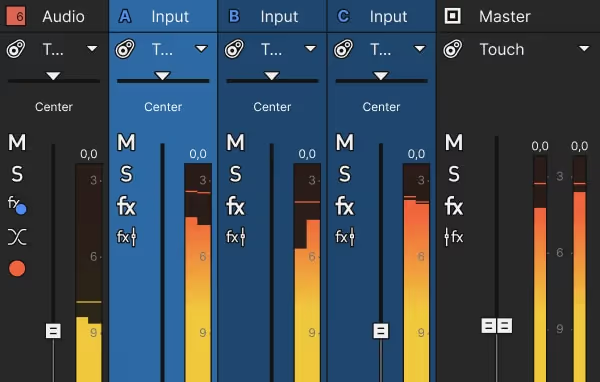
Input busses
Patch your favorite hardware compressor, reverb unit, or anything else in and route a signal from Vegas Pro seamlessly into your mix.
Advanced expandability
Unlock endless creativity with powerful built-in tools and full plugin support.
2D and 3D motion and compositing
Stay in the zone with powerful compositing and positioning tools.
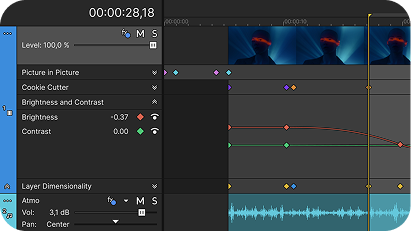
OFX keyframe animation
Automate event and track video effects with a logical keyframe approach. With direct integration into your project timeline, you will never lose your creative flow.
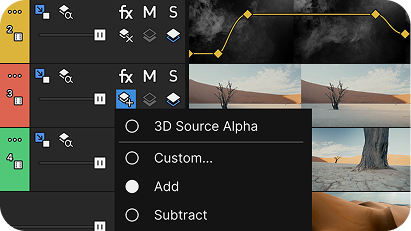
Track compositing modes
Your timeline makes for a powerful compositing environment with a wide array of compositing modes that reduce your need for external compositing software.
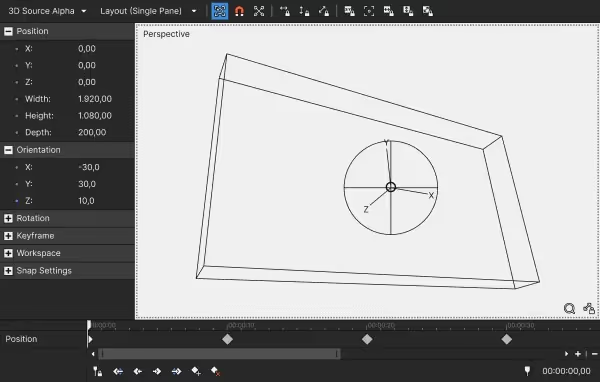
3D plane positioning
Create interesting perspectives and motion in 3D space. Tilt your text, map video to an angled wall, and much more. All completely automatable.
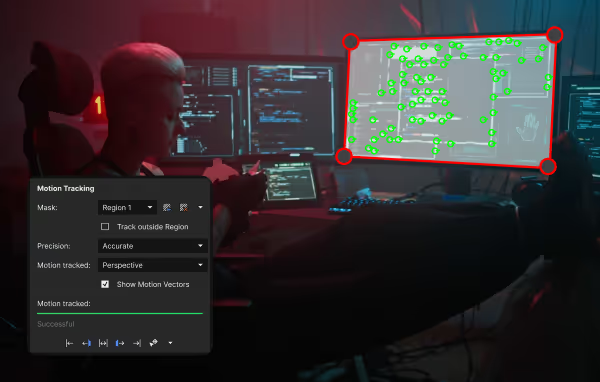
Planar motion tracking
Built-in tracking enables you to identify and follow an object and simultaneously attach an effect or another object to follow along.
Import Mocha motion data
For the most powerful tracking available, import shape and tracking data from Mocha Pro and integrate it into your project as if it was a native tool.
Video plug-in and scripting support
Use built-in effects, external plug-ins, and powerful scripting for automation.
OFX video plugins
Integrate virtually any OFX plugin into your project, including the most exciting effects and filters from Boris FX and more.
VST2 + VST3 plug-ins
Enhance your audio mix and add special effects with an array of high-end plug-ins from Boris FX and third-party developers.
Application scripting API
Save countless editing hours with application scripting. Automate nearly every operation in Vegas Pro so the software does the tedious work for you.
Add music, sound effects, and B-roll
Give your production extra impact with royalty free audio and video elements.
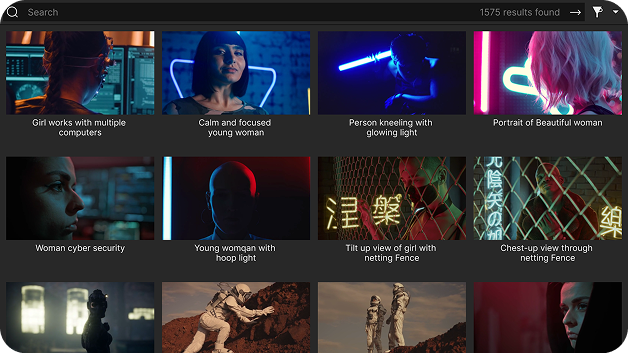
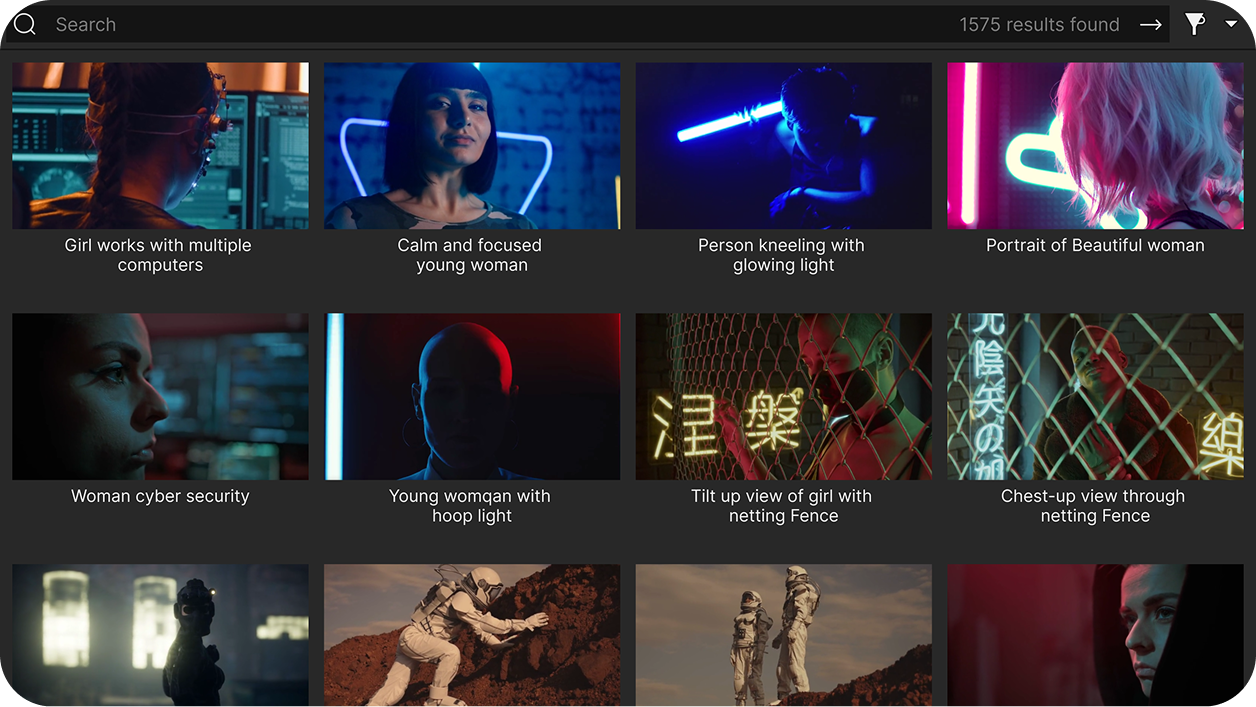
Royalty Free Footage, SFX, and Music via StoryBlocks
Explore thousands of royalty-free video and audio assets through the Vegas Hub Explorer and incorporate them directly in your timeline.
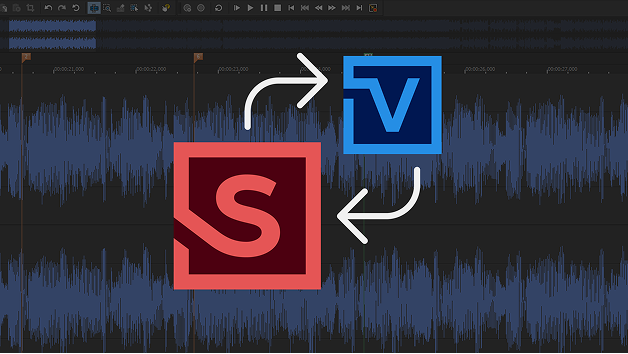
Sound Forge for audio editing
When you need to get serious about editing audio, Sound Forge provides the tools for everything from the simplest task to surgical editing, repair, and sound design work.
AI: Assistance with intention
Get the job done faster with the help of thoughtfully designed tools.
2D and 3D motion and compositing
Stay in the zone with powerful compositing and positioning tools.
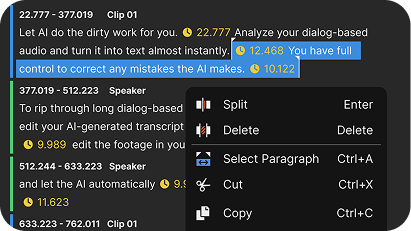
Text-based Editing
Tear through long dialog-heavy rough cuts in record time. Just edit the AI-generated transcript, and the footage updates automatically in your timeline.
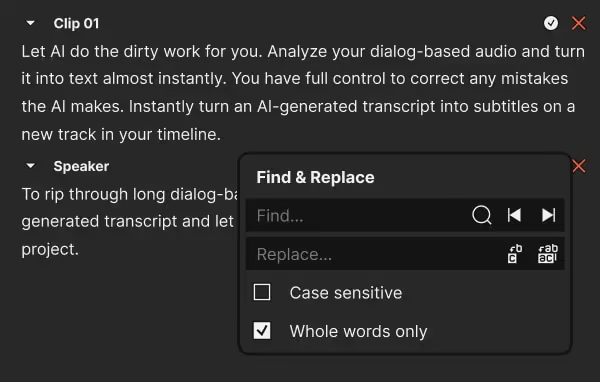
Speech to Text
Let AI analyze your dialog-based audio and convert it to text in seconds, ready for you to review and refine.
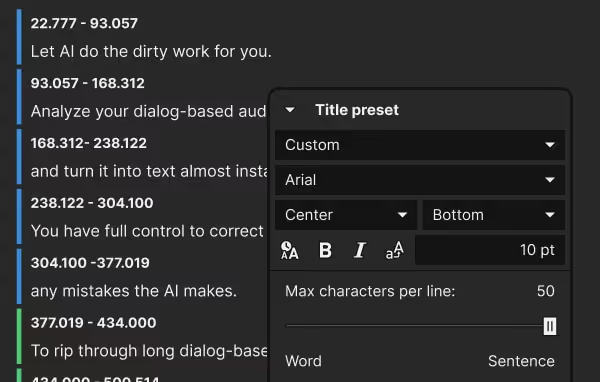
Auto subtitles
Instantly turn an AI-generated transcript into subtitles on a new track in your timeline and take full creative control over wording and timing.
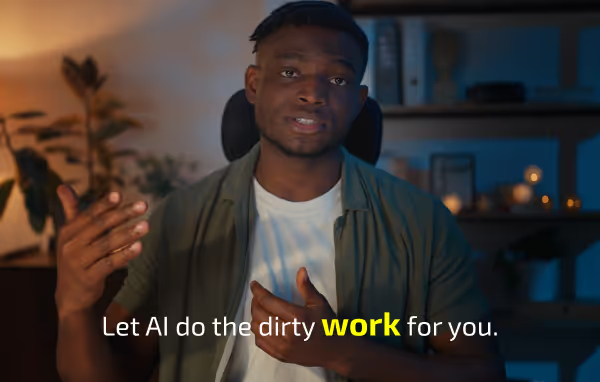
Subtitle word highlighting
Quickly synchronize subtitle highlights to match the currently spoken word in your dialog to improve readability.
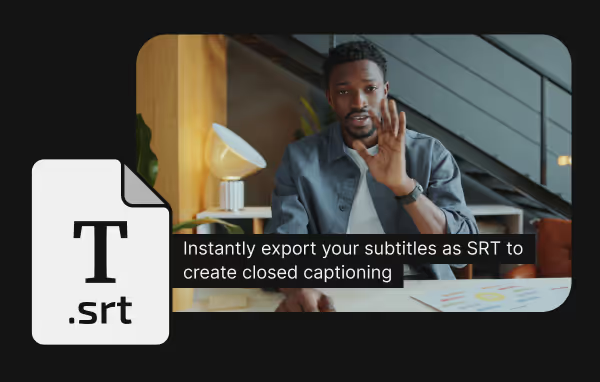
SRT export for closed captioning
Instantly export your subtitles in SRT format and use the SRT file to create closed captioning. Either in your project or on a variety of platforms.
Text to Speech
Create narration in multiple languages with natural-sounding voices.
Text to Speech
Enter your text, choose a language and voice, and let AI generate natural-sounding narration tailored to your project.
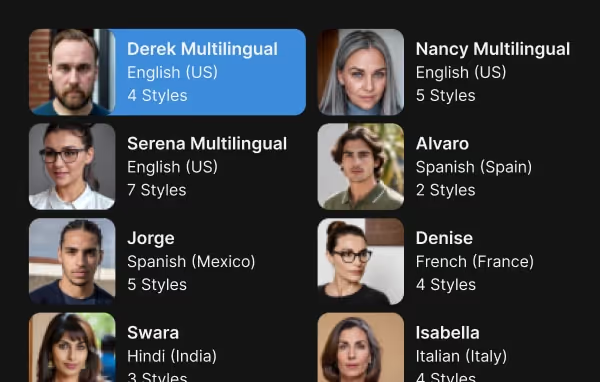
Multiple-language voice options
Choose from a wide range of languages and voice styles for your generated audio. Like a female voice in Italian or a male voice with an Australian accent.
Creative AI
Innovative AI tools to speed up your edits and boost creativity.
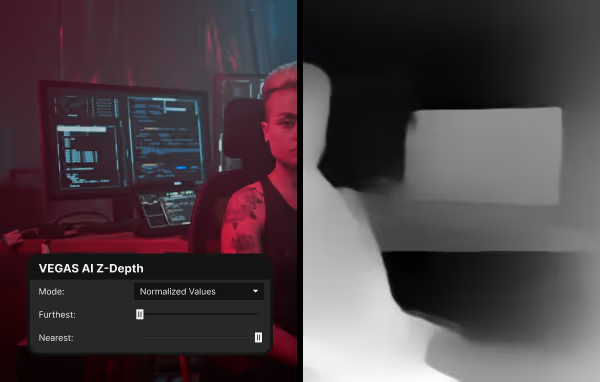
Z-Depth
Define a border between foreground and background. Then insert an object between them or apply an affect to one but not the other.
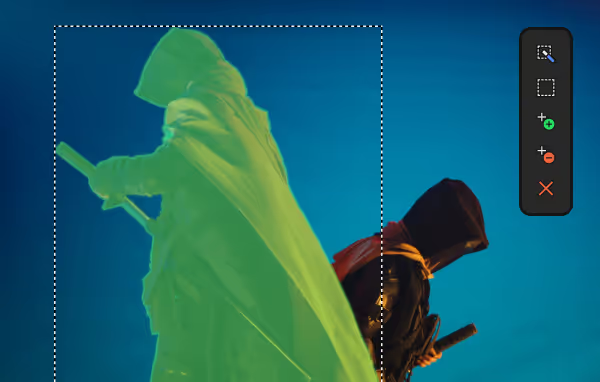
Smart Mask
Identify objects in your scene and create masks to isolate them. Then apply affects to the masked objects or drop a different background behind them.
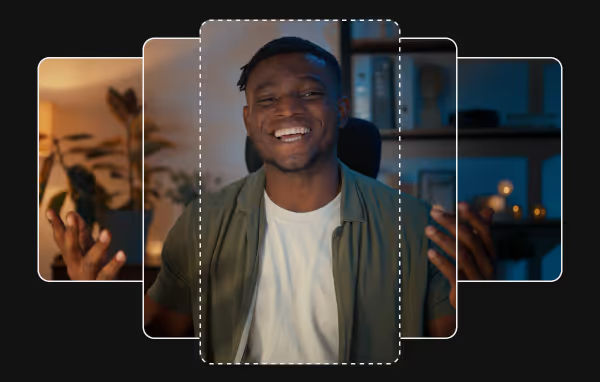
Auto Reframe
AI reformats your footage for seamless delivery across all your social media channels, saving you time and effort.
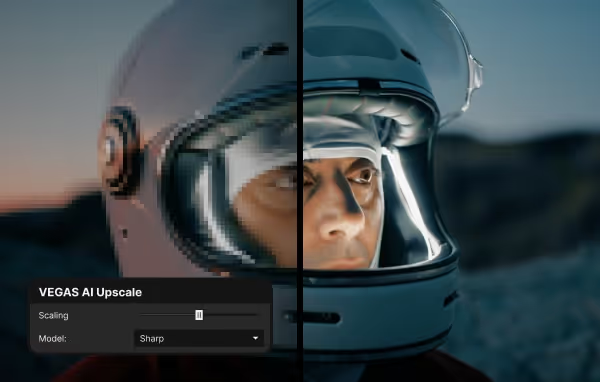
Upscale
Increase the resolution of your footage to match that of your project. Perfect for SD footage in HD projects.
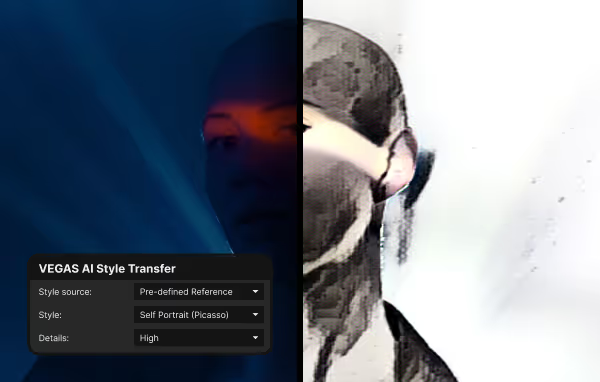
Style Transfer
Want your video to look like a Monet painting? Apply the style of your favorite artist to your footage.
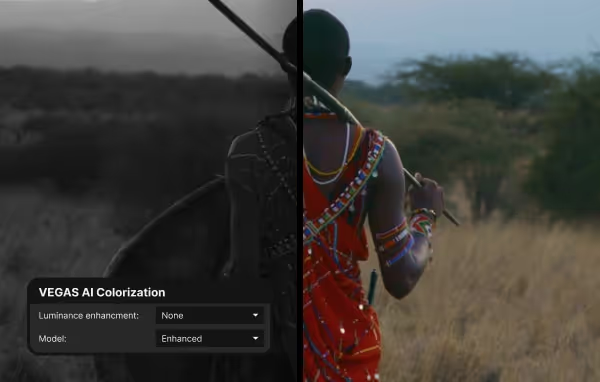
Colorization
Convert black-and-white footage to full color. AI will accurately identify objects and apply realistic, context-aware coloring.
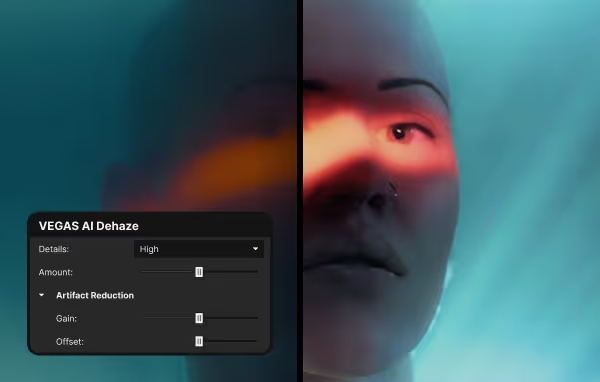
Dehaze
Completely remove or adjust the amount of haze, fog, smoke, and dust in your shot to bring out your video subject.
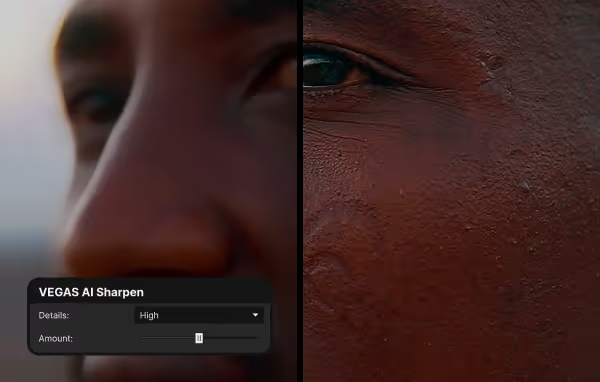
Sharpen
Don’t let bad camera focus ruin an otherwise perfect shot. Bring clarity to “soft” footage with full control over the sharpening amount.
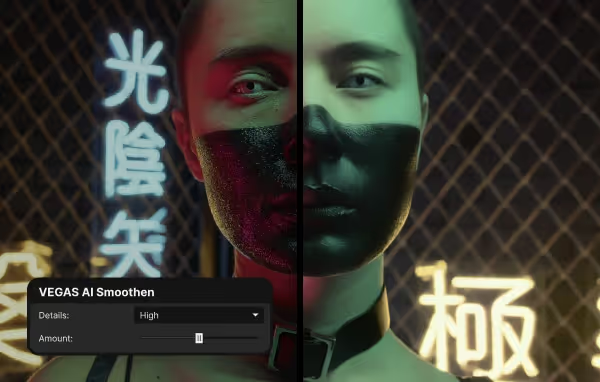
Smoothen
Sometimes a shot can be too well focused. Direct AI to soften your image with full control over the amount of blur you add.
Frequently Asked Questions
Download Vegas Pro, sign in with your Boris FX account, and start editing. No activation keys or complicated setup.
Yes. Start a free 15-day trial with full access to all features.
Yes. You can use your license on up to two computers, so you can edit wherever you work.
No. Just sign in and start editing — it’s that simple.
Our team is here for you. Reach out anytime or start a live chat on our website.